
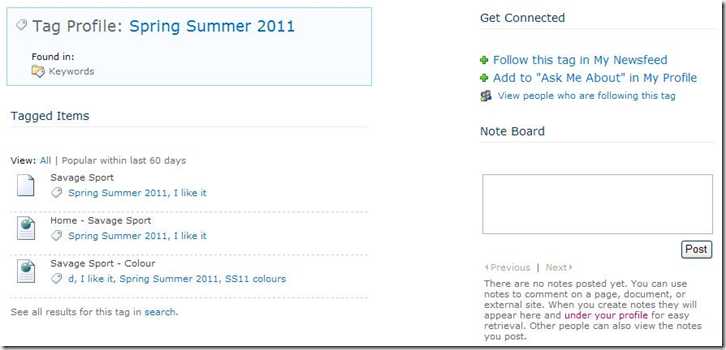
I experienced a strange problem with a SharePoint 2010 application. The new social features provide a tagging mechanism and these tags have a profile page where you can follow, view and generally find information about the tag.

As you can see from the image above the page is reporting no data available. Now this was puzzling as I had tagged several pages with this tag.
So I turned my attention to Search as other social features while installed are not enabled by default.
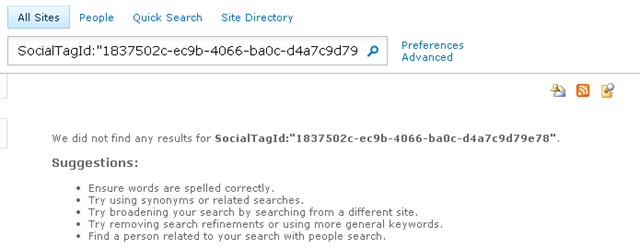
Trying to find content by this tag also resulted in no items
Navigate to the Search service application and browse to Crawled Properties. Firstly look for ‘key’ and make sure the TaxKeyword is included in search.
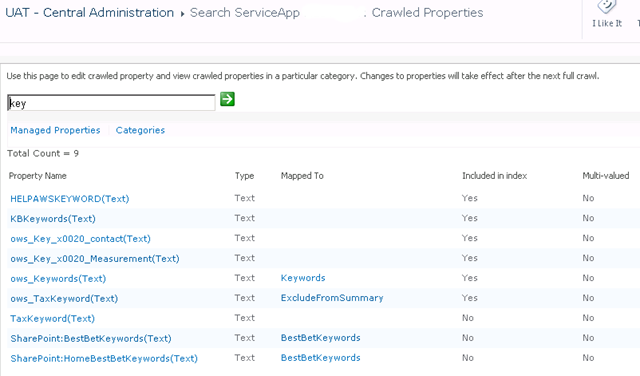
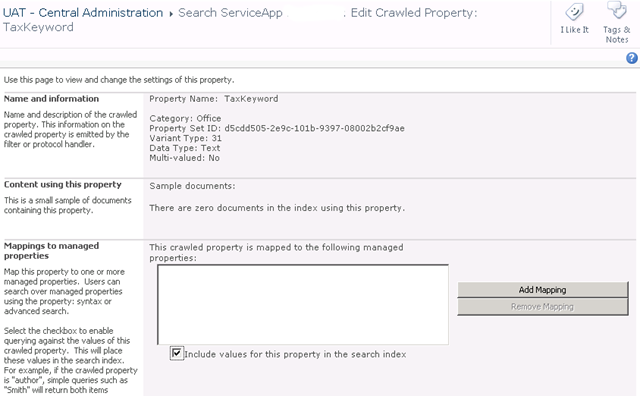
Commit this change.
Next is the tags starting with ‘tax’

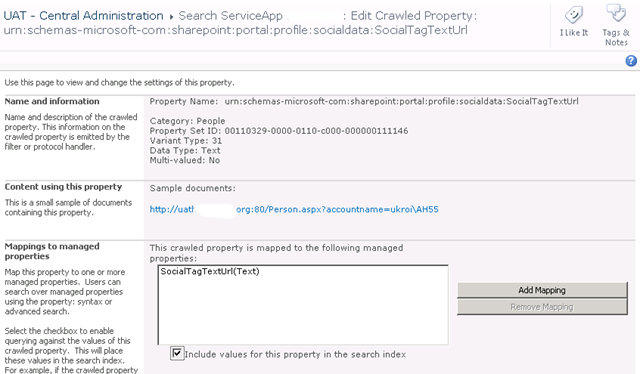
Once these changes are made you need to re-crawl the content and profiles for these changes to propagate to the index.
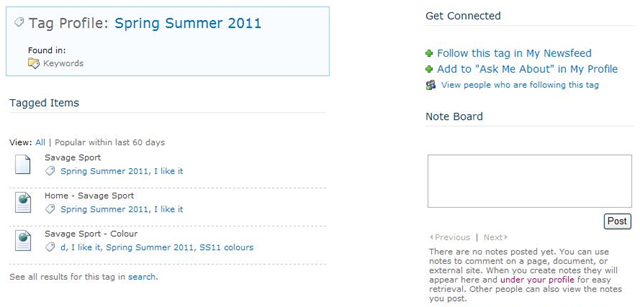
Tag information is now displaying




Thank you!
Hi Wes,
I have try this solution, but I only get tagged items to display after full crawl…
Is it can work without full crawl?
Hi,
You will only need to perform a full crawl after configuring the managed property. This is part of that process. From then on it should get updates as normal through incremental crawling.
Cheers,
Wes
Hi Wes,
In my realization for this article,
1.find two crawled properties:
TaxKeyword(Text),
People:SocialTagTextUrl(Text)
Then check the checkbox of “Include values for this property in the search index
” in these crawled properties.
2. Then full crawl all content
Right?
I have spent 3 days to solve this problem, finally, I get only one solution that is needed full crawl and then run a timer job(User Profile Service Application – Social Data Maintenance Job). But….my boss do not accept this solution…..The full crawl period is too long….
Thanks!
Regards
Ming Cheung
Hi Wes,
I am facing the same problem with SP2013. The problem propagates also to the new Content Search Web Part if you want to refine by tag. I tried to follow above steps but nothing changes. Have you encountered the same problem?
Hi Wes, thank you very much for posting this 🙂 One comment: Not sure what you mean by “Next is the tags starting with ‘tax’ ” , but apart from that – great!
Hi wes,i tried doing above steps but no use in sharepoint 2013,I am working in virtual machine is that a problem?i read somewhere that some user profile service dont work if the system is not in domain
Hi Wes,
would you please be so Kind to translate your guide to SharePoint 2013, as I am having the same Problem in SharePoint 2013 but the configuratino menu in SP 2013 is way different than in 2013 regarding this issue.
I really appreciate your work here! Keep up the good work!
Kind regards,
Andy
Hi Wes,
thank you so much for this guide. I did get it to work in SP 2013. Now my Tags are showing under All. I needed an Index Reset and a full crawl after I marked the crawled properties as searchable.
Have a really nice day!
Hello Wes,
do you know by any Chance why in SharePoint 2013 it takes always a day for the items under ALL to Show up? Which timer Job is responsible for bringing the Content up in ALL? I would like to decrease the time from 1 Day to 1 hour (or less).
Kind regards
Andy